US · theexceladdict.com

Excel in Seconds Tip - A Hidden Trick To Quickly Access Your Recent List of Workbooks

Having trouble viewing this email? Click HERE February, 14, 2019 Hi In this week's newsletter, I want to share with you one of the most useful and surprising tricks that I've seen in the past several years. If you like this week's tip, please share it and recommend your colleagues and any other Excel users you know to sign up for my newsletter. Keep on Excelling, Francis Hayes (The Excel Addict) Email: fhayes[AT]TheExcelAddict.com To view my online version of this newsletter, click here. Please note that any corrections or updates will be posted here as well. If you missed my last newsletter, you can click here to view it online. You can access even more tips on my website by going to my RecentPosts page. To update your contact info, click the 'Change Subscriber Options' at the bottom of this email. Having a positive attitude can help us in difficult times. I hope today's quote will help you realize a positive attitude today. Quote of the Day ""Happiness is an attitude. We either make ourselves miserable, or happy and strong. The amount of work is the same." -- Carlos Castaneda -- If you have a favourite quote, send it to me and I may post it in my newsletter. THIS WEEK'S 'EXCEL IN MINUTES' TIP A Hidden Trick To Quickly Access Your Recent List of Workbooks This HIDDEN TRICK is one of my favourite discoveries in the past few years. In the past, whenever I needed to open a recently-used workbook, I either used the the Start (menu), Excel method... or, from within Excel, selected from File, Open, Recent Workbooks... But a couple of years ago I discovered a HIDDEN TRICK that allows Excel users to quickly and easily access the files they have recently worked with. Simply right click the Excel button on the Windows Taskbar (or left click and drag up) and you will see a list of your recently-used workbooks. Also, from this Recent list, you have the option to pin any workbooks that you use regularly, so they remain on the list. Just point to a workbook on the list and click the pin icon. That workbook will be moved up to the Pinned list. If you don't see this Recent list, in Excel, click File, Options, Advanced and, in the Display section, check the 'Quickly access this number of Recent Workbooks' option. You can control the number of recent workbooks on the list with this option. You will also be happy to know that this right-click option on the Taskbar works for many other programs. Not only for opening Recent files, but with some programs such as Outlook, you can immediately initiate a common task or, with Explorer, you can open a recently-used folder — WOW!!. The ability to pin frequently-used folders to the Explorer menu is HUGE! Once you get used to using this hidden trick, you will quickly realize how much time it can save you. Share this tip. Click on the link below.. 'Excel in Minutes' with The Excel Addict A Hidden Trick To Quickly Access Your Recent List of Workbooks If you've found this tip helpful, please share it. My records show that at requested a subscription to this newsletter at TheExcelAddict.com on October 25, 2018. Subscription Information: Spreadsheet Tips From An Excel Addict is available only to subscribers of my newsletter. If this newsletter was forwarded to you and you would like to get your own copy, please visit TheExcelAddict.com or send a blank email to theexceladdict(AT)aweber.com If you would like to share this newsletter with others... 1) Forward this newsletter by email, but first delete the unsubscribe link at the very bottom so you don't get accidentally unsubscribed 2) Ask your friend/colleague to visit TheExcelAddict.com or send a blank email to theexceladdict(AT)aweber.com 3) Post a link to TheExcelAddict.com in a company newsletter or website. Disclosure: Some of the resources I recommend on my website and in my newsletter pay me a small referral commission if you purchase from them through links on my website or using my referral code. This helps offset the costs of my website. I've worked long and hard to build up my reputation online over the past 10 years as someone who provides exceptional value to my readers. So I'm not willing to risk that. As you know, I don’t just recommend anything. It has to be of outstanding quality and value. If you are EVER not completely satisfied with anything I recommend, please let me know and you will get your money...GUARANTEED. You can't lose. "Spreadsheets Tips From An Excel Addict" is a weekly publication of TheExcelAddict.com. Copyright Francis J. Hayes All Rights Reserved. 8 Lexington Place, Conception Bay South, Newfoundland, Canada, A1X 6A2 Phone: 709-834-4630 8 Lexington Place, Conception Bay South, Newfoundland A1X 6A2, CANADA Unsubscribe | Change Subscriber Options


This email was sent

Is this your brand on Milled? Claim it.

IMAGE: Microsoft Excel 2007 2010 2013 2016 365 Tips
IMAGE: Excel In Minutes Tips and Tricks from The Excel Addict - Microsoft Excel 2003, 2007, 2010, 2013, 2016, 2019, 365
 
Having trouble viewing this email? Click HERE
 
February, 14, 2019
 
Hi -,
 
In this week's newsletter, I want to share with you one of the most useful and surprising tricks that I've seen in the past several years.

If you like this week's tip, please share it and recommend your colleagues and any other Excel users you know to sign up for my newsletter.

Keep on Excelling,
Francis Hayes (The Excel Addict)
Email:  fhayes[AT]TheExcelAddict.com


Start Your Free Trial Today!


To view my online version of this newsletter, click here. Please note that any corrections or updates will be posted here as well.

If you missed my last newsletter, you can click here to view it online.

You can access even more tips on my website by going to my RecentPosts page.

To update your contact info, click the 'Change Subscriber Options' at the bottom of this email.


Having a positive attitude can help us in difficult times.
I hope today's quote will help you realize a positive attitude today.


Quote of the Day

""Happiness is an attitude.
We either make ourselves miserable, or happy and strong.
The amount of work is the same."

-- Carlos Castaneda --

 
If you have a favourite quote, send it to me and I may post it in my newsletter.
 

THIS WEEK'S 'EXCEL IN MINUTES' TIP

 
A Hidden Trick To Quickly Access Your Recent List of Workbooks

This HIDDEN TRICK is one of my favourite discoveries in the past few years.

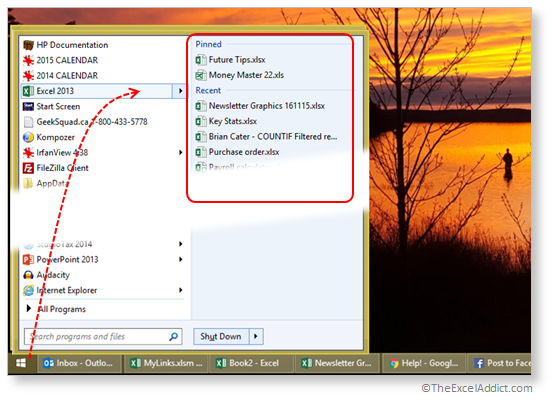
In the past, whenever I needed to open a recently-used workbook, I either used the the Start (menu), Excel method...

 
Recent Files On Start Menu in Microsoft Excel 2007 2010 2013 2016 365

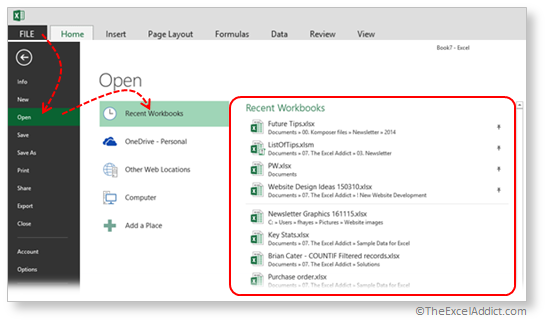
or, from within Excel, selected from File, Open, Recent Workbooks...
 
Recent Files From Open Dialog in Microsoft Excel 2007 2010 2013 2016 365
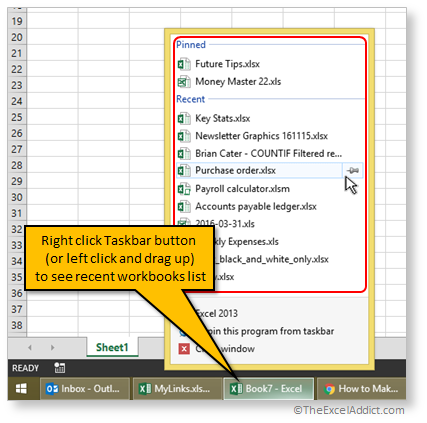
But a couple of years ago I discovered a HIDDEN TRICK that allows Excel users to quickly and easily access the files they have recently worked with. Simply right click the Excel button on the Windows Taskbar (or left click and drag up) and you will see a list of your recently-used workbooks.
 
Access Recent List Of Workbooks From Windows Taskbar in Microsoft Excel 2007 2010 2013
2016 365

Also, from this Recent list, you have the option to pin any workbooks that you use regularly, so they remain on the list. Just point to a workbook on the list and click the pin icon. That workbook will be moved up to the Pinned list.

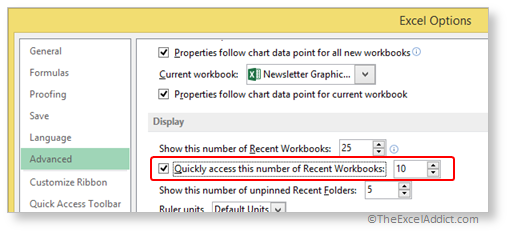
If you don't see this Recent list, in Excel, click File, Options, Advanced and, in the Display section, check the 'Quickly access this number of Recent Workbooks' option. You can control the number of recent workbooks on the list with this option.

 
Option Setting To Access Recent Workbooks in Microsoft Excel 2007 2010 2013 2016 365

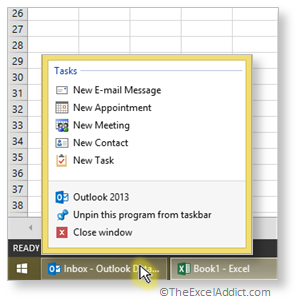
You will also be happy to know that this right-click option on the Taskbar works for many other programs. Not only for opening Recent files, but with some programs such as Outlook, you can immediately initiate a common task or, with Explorer, you can open a recently-used folder — WOW!!. The ability to pin frequently-used folders to the Explorer menu is HUGE!
 
Right Click Taskbar Options in Microsoft Excel 2007 2010 2013 2016 365
Once you get used to using this hidden trick, you will quickly realize how much time it can save you.
 

Share this tip. Click on the link below..

'Excel in Minutes' with The Excel Addict
A Hidden Trick To Quickly Access Your Recent List of Workbooks
If you've found this tip helpful, please share it.


My records show that - at - requested a subscription to this newsletter at TheExcelAddict.com on October 25, 2018.

Subscription Information: Spreadsheet Tips From An Excel Addict is available only to subscribers of my newsletter. If this newsletter was forwarded to you and you would like to get your own copy, please visit TheExcelAddict.com or send a blank email to theexceladdict(AT)aweber.com

 If you would like to share this newsletter with others...
1) Forward this newsletter by email, but first delete the unsubscribe link at the very bottom so you don't get accidentally unsubscribed
2) Ask your friend/colleague to visit TheExcelAddict.com or send a blank email to theexceladdict(AT)aweber.com
3)  Post a link to TheExcelAddict.com in a company newsletter or website.

Disclosure: Some of the resources I recommend on my website and in my newsletter pay me a small referral commission if you purchase from them through links on my website or using my referral code. This helps offset the costs of my website. I've worked long and hard to build up my reputation online over the past 10 years as someone who provides exceptional value to my readers. So I'm not willing to risk that. As you know, I don’t just recommend anything. It has to be of outstanding quality and value. If you are EVER not completely satisfied with anything I recommend, please let me know and you will get your money...GUARANTEED. You can't lose.


"Spreadsheets Tips From An Excel Addict" is a weekly publication of TheExcelAddict.com.
Copyright Francis J. Hayes All Rights Reserved.
8 Lexington Place, Conception Bay South, Newfoundland, Canada, A1X 6A2 Phone: 709-834-4630


8 Lexington Place, Conception Bay South, Newfoundland A1X 6A2, CANADA

Unsubscribe | Change Subscriber Options

Are you sure?

Lists help you organize the brands that you care about. Your lists are private to you.