US · theexceladdict.com

The Excel Addict - Quickly Apply Your Own Predefined Cell Formatting Styles

Having trouble viewing this email? Click HERE November 21, 2018 Hi I had intended to send this newsletter out yesterday, ahead of the American Thanksgiving Day holiday, but something came up and I got delayed. Now, I am wishing my American readers a Happy Thanksgiving today on the holiday, though many are likely not at work to read this. In Canada, we celebrated Thanksgiving in October. But really we all should be celebrating it every day for all of the wonderful things we have to be thankful for in this world. Today my 'Excel in Minutes' tip is 'Quickly Apply Your Own Predefined Cell Formatting Styles' I always appreciate it when I get feedback from my readers letting me know if my tips help them — or maybe if it doesn't because may they do things differently. If you find today's 'Excel in Minutes' tip helpful, please share it with other Excel users that you know. They will be thankful. Keep on Excelling, Francis Hayes (The Excel Addict) Email: fhayes[AT]TheExcelAddict.com To view my online version of this newsletter, click here. Please note that any corrections or updates will be posted here as well. If you missed my last newsletter, you can click here to view it online. You can access even more tips on my website by going to my RecentPosts page. To update your contact info, click the 'Change Subscriber Options' at the bottom of this email. Having a positive attitude can often get us through difficult times. I hope this quote will help you maintain a positive attitude today. Quote of the Day "I have learned that if one advances confidently in the direction of his dreams, and endeavors to live the life he has imagined, he will meet with a success unexpected in common hours." -- Henry David Thoreau -- If you have a favourite quote, send it to me and I may post it in my newsletter. THIS WEEK'S 'EXCEL IN MINUTES' TIP Quickly Apply Your Own Predefined Cell Formatting Styles A Cell Style is a predefined set of formatting attributes such as Number, Alignment, Font, Border, Fill, and Protection. Cell styles allow you quickly apply more than one format to a range of cells in a single step. Cell styles are frequently used to highlight column headings, input cells, formula cells, protected cells, items requiring review, above average, below average or almost anything you would want to stand out on your worksheet. To apply a predefined Cell Style, select the cells where you want to apply the style, then click the Cell Styles dropdown arrow on the Home tab and choose a style. You are not limited to the cell styles provided by Excel. You can easily create custom cell styles of your own. This allows you to quickly apply your own custom formatting consistently to cells throughout your workbook. Create a Cell Style By Example The easiest way to create a new custom cell style is by choosing a cell that already contains the formatting attributes you want and defining a custom style based on that cell. 1) Select a single cell with the formatting you want to use as your new style. If there isn't an existing cell with the formatting you want, in a single cell, apply the desired formatting as you normally do. Do not select more than one cell as only the attributes common to both will be used; 2) On the Home tab, click the New Cell Style... option at the bottom of the Cell Styles gallery. You will notice that the current cell's formatting is listed in the Style Includes (By Example) section of the dialog; 3) Type a new name for the style and click OK. After you close the Style dialog box, you will see new cell styles conveniently located in the Custom section at the top of the Cell Styles gallery. To instantly apply your new custom style to cells anywhere in your workbook, select cells where you want it applied and click your style name in the Styles gallery. Modify an Existing Cell Style To modify an existing style... 1) On the Home tab click the Cell Styles dropdown; 2) Right click on a style and choose Modify...; 3) In the Style dialog you can check or uncheck which attributes you want to be applied with this style. Click the Format... button to see the specific attributes currently include in this style and make further modifications if necessary. Then click OK to finish. Applying Cell Styles is not the same as using Format Painter Applying a Cell Style to a range of cells is not the same as copying and pasting formatting (e.g. Format Painter). When a cell style is applied to a range of cells, only the formatting attributes defined in that style are applied. So, for example, if you have a custom cell style that includes only Font and Fill formatting, when this cell style is applied to a range of cells, only the Fill and Font attributes are applied. All other formatting previously included in the target cells is retained (e.g. Number formatting, Borders, etc...). Clear styles from cells To clear any cell style that has been applied to cells in your worksheet, click Home, Cell Styles, and click the Normal style. Creating Cell Styles to be used in any workbook Cell Styles are saved only in the workbook in which they are created. To find out how to save Cell Styles so that you can apply them to any workbook, check out this tip. Deleting Cell Styles - BE CAREFUL! One major drawback with using Cell Styles is that, if you delete a cell style, all formatting defined in that style is removed from all cells throughout the workbook that have been formatted with it. When you delete a style, there is no warning message and you cannot Undo the delete operation. So BE CAREFUL! To delete any custom or built-in Cell Style (except the Normal style), if it is visible on the Ribbon, right click the style and choose Delete. Otherwise, click the Cell Styles dropdown, right click the style in the gallery and choose Delete. This is not a complete overview of Cell Styles, so I recommend that you spend a little time exploring and considering how you could use Cell Styles to make your job easier and your workbooks easier to understand. 'Excel in Minutes' with The Excel Addict Quickly Apply Your Own Predefined Cell Formatting Styles If you've found this tip helpful, please share it. My records show that at requested a subscription to this newsletter at TheExcelAddict.com on October 25, 2018. Subscription Information: Spreadsheet Tips From An Excel Addict is available only to subscribers of my newsletter. If this newsletter was forwarded to you and you would like to get your own copy, please visit TheExcelAddict.com or send a blank email to theexceladdict(AT)aweber.com If you would like to share this newsletter with others... 1) Forward this newsletter by email, but first delete the unsubscribe link at the very bottom so you don't get accidentally unsubscribed 2) Ask your friend/colleague to visit TheExcelAddict.com or send a blank email to theexceladdict(AT)aweber.com 3) Post a link to TheExcelAddict.com in a company newsletter or website. Disclosure: Some of the resources I recommend on my website and in my newsletter pay me a small referral commission if you purchase from them through links on my website or using my referral code. This helps offset the costs of my website. I've worked long and hard to build up my reputation online over the past 10 years as someone who provides exceptional value to my readers. So I'm not willing to risk that. As you know, I don’t just recommend anything. It has to be of outstanding quality and value. If you are EVER not completely satisfied with anything I recommend, please let me know and you will get your money...GUARANTEED. You can't lose. "Spreadsheets Tips From An Excel Addict" is a weekly publication of TheExcelAddict.com. Copyright Francis J. Hayes All Rights Reserved. 8 Lexington Place, Conception Bay South, Newfoundland, Canada, A1X 6A2 Phone: 709-834-4630 8 Lexington Place, Conception Bay South, Newfoundland A1X 6A2, CANADA Unsubscribe | Change Subscriber Options


This email was sent

Is this your brand on Milled? Claim it.

IMAGE: Microsoft Excel 2007 2010 2013 2016 365 Tips
IMAGE: Excel In Seconds Tips and Tricks from The Excel Addict - Microsoft Excel 2003, 2007, 2010, 2013, 2016, 365
 
Having trouble viewing this email? Click HERE
 
November 21, 2018
 
Hi -,
 
I had intended to send this newsletter out yesterday, ahead of the American Thanksgiving Day holiday, but something came up and I got delayed. Now, I am wishing my American readers a Happy Thanksgiving today on the holiday, though many are likely not at work to read this.
 
Happy Thanksgiving

In Canada, we celebrated Thanksgiving in October. But really we all should be celebrating it every day for all of the wonderful things we have to be thankful for in this world.

Today my 'Excel in Minutes' tip is 'Quickly Apply Your Own Predefined Cell Formatting Styles'

I always appreciate it when I get feedback from my readers letting me know if my tips help them — or maybe if it doesn't because may they do things differently.

If you find today's 'Excel in Minutes' tip helpful, please share it with other Excel users that you know.
They will be thankful.

Keep on Excelling,
Francis Hayes (The Excel Addict)
Email:  fhayes[AT]TheExcelAddict.com


Start Your Free Trial Today!

 
To view my online version of this newsletter, click here. Please note that any corrections or updates will be posted here as well.

If you missed my last newsletter, you can click here to view it online.

You can access even more tips on my website by going to my RecentPosts page.

To update your contact info, click the 'Change Subscriber Options' at the bottom of this email.


Having a positive attitude can often get us through difficult times.
I hope this quote will help you maintain a positive attitude today.


Quote of the Day

"I have learned that if one advances confidently in the direction of his dreams, and endeavors to live the life he has imagined, he will meet with a success unexpected in common hours."

-- Henry David Thoreau --


If you have a favourite quote, send it to me and I may post it in my newsletter.
 

THIS WEEK'S 'EXCEL IN MINUTES' TIP

 
Quickly Apply Your Own Predefined Cell Formatting Styles

A Cell Style is a predefined set of formatting attributes such as Number, Alignment, Font, Border, Fill, and Protection. Cell styles allow you quickly apply more than one format to a range of cells in a single step.

Cell styles are frequently used to highlight column headings, input cells, formula cells, protected cells
, items requiring review, above average, below average or almost anything you would want to stand out on your worksheet.

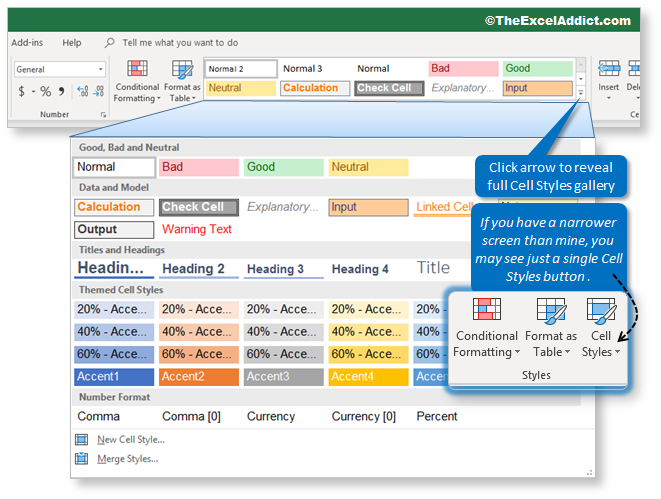
To apply a predefined Cell Style, select the cells where you want to apply the style, then click the Cell Styles dropdown arrow on the Home tab and choose a style.

 
Cell Style Palette in Microsoft Excel 2007 2010 2013 2016 365 2019

You are not limited to the cell styles provided by Excel. You can easily create custom cell styles of your own. This allows you to quickly apply your own custom formatting consistently to cells throughout your workbook.

Create a Cell Style By Example

The easiest way to create a new custom cell style is by choosing a cell that already contains the formatting attributes you want and defining a custom style based on that cell.

1) Select a single cell with the formatting you want to use as your new style. If there isn't an existing cell with the formatting you want, in a single cell, apply the desired formatting as you normally do.
Do not select more than one cell as only the attributes common to both will be used;

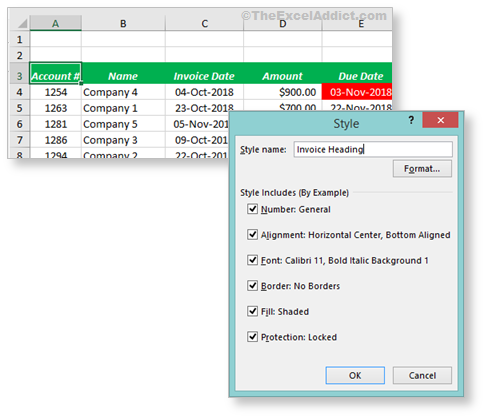
2) On the Home tab, click the New Cell Style... option at the bottom of the Cell Styles gallery. You will notice that the current cell's formatting is listed in the Style Includes (By Example) section of the dialog;

3) Type a new name for the style  and click OK.

 
Create Cell Style By Example in Microsoft Excel 2007 2010 2013 2016 365 2019
 
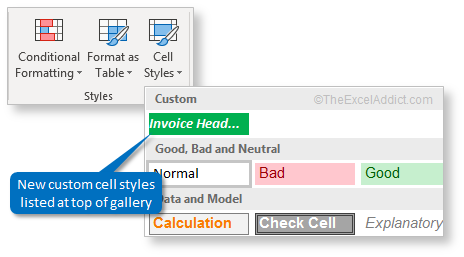
After you close the Style dialog box, you will see new cell styles conveniently located in the Custom section at the top of the Cell Styles gallery. To instantly apply your new custom style to cells anywhere in your workbook, select cells where you want it applied and click your style name in the Styles gallery.

 
Custom Cell Styles Listed At Top in Microsoft Excel 2007 2010 2013 2016 365 2019

Modify an Existing Cell Style

To modify an existing style...

1) On the Home tab click the Cell Styles dropdown;

2) Right click on a style and choose Modify...;

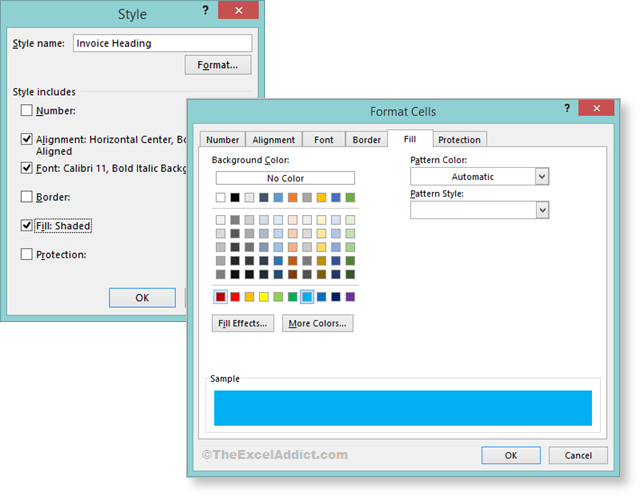
3) In the Style dialog you can check or uncheck which attributes you want to be applied with this style. Click the Format... button to see the specific attributes currently include in this style and make further modifications if necessary. Then click OK to finish.

 
Modify Cell Style Dialog in Microsoft Excel 2007 2010 2013 2016 365 2019
Applying Cell Styles is not the same as using Format Painter

Applying a Cell Style to a range of cells is not the same as copying and pasting formatting (e.g. Format Painter). When a cell style is applied to a range of cells, only the formatting attributes defined in that style are applied. So, for example, if you have a custom cell style that includes only Font and Fill formatting, when this cell style is applied to a range of cells, only the Fill and Font attributes are applied. All other formatting previously included in the target cells is retained (e.g. Number formatting, Borders, etc...).

Clear styles from cells

To clear any cell style that has been applied to cells in your worksheet, click Home, Cell Styles, and click the Normal style.


Creating Cell Styles to be used in any workbook

Cell Styles are saved only in the workbook in which they are created. To find out how to save Cell Styles so that you can apply them to any workbook, check out this tip.


Deleting Cell Styles - BE CAREFUL!

One major drawback with using Cell Styles is that, if you delete a cell style, all formatting defined in that style is removed from all cells throughout the workbook that have been formatted with it.

When you delete a style, there is no warning message and you cannot Undo the delete operation.
So BE CAREFUL!

To delete any custom or built-in Cell Style (except the Normal style), if it is visible on the Ribbon, right click the style and choose Delete. Otherwise, click the Cell Styles dropdown, right click the style in the gallery and choose Delete.

This is not a complete overview of Cell Styles, so I recommend that you spend a little time exploring and considering how you could use Cell Styles to make your job easier and your workbooks easier to understand.


'Excel in Minutes' with The Excel Addict
Quickly Apply Your Own Predefined Cell Formatting Styles
If you've found this tip helpful, please share it.


My records show that - at - requested a subscription to this newsletter at TheExcelAddict.com on October 25, 2018.

Subscription Information: Spreadsheet Tips From An Excel Addict is available only to subscribers of my newsletter. If this newsletter was forwarded to you and you would like to get your own copy, please visit TheExcelAddict.com or send a blank email to theexceladdict(AT)aweber.com

 If you would like to share this newsletter with others...
1) Forward this newsletter by email, but first delete the unsubscribe link at the very bottom so you don't get accidentally unsubscribed
2) Ask your friend/colleague to visit TheExcelAddict.com or send a blank email to theexceladdict(AT)aweber.com
3)  Post a link to TheExcelAddict.com in a company newsletter or website.

Disclosure: Some of the resources I recommend on my website and in my newsletter pay me a small referral commission if you purchase from them through links on my website or using my referral code. This helps offset the costs of my website. I've worked long and hard to build up my reputation online over the past 10 years as someone who provides exceptional value to my readers. So I'm not willing to risk that. As you know, I don’t just recommend anything. It has to be of outstanding quality and value. If you are EVER not completely satisfied with anything I recommend, please let me know and you will get your money...GUARANTEED. You can't lose.


"Spreadsheets Tips From An Excel Addict" is a weekly publication of TheExcelAddict.com.
Copyright Francis J. Hayes All Rights Reserved.
8 Lexington Place, Conception Bay South, Newfoundland, Canada, A1X 6A2 Phone: 709-834-4630


8 Lexington Place, Conception Bay South, Newfoundland A1X 6A2, CANADA

Unsubscribe | Change Subscriber Options

Are you sure?

Lists help you organize the brands that you care about. Your lists are private to you.