New features added to Prodigi™ software
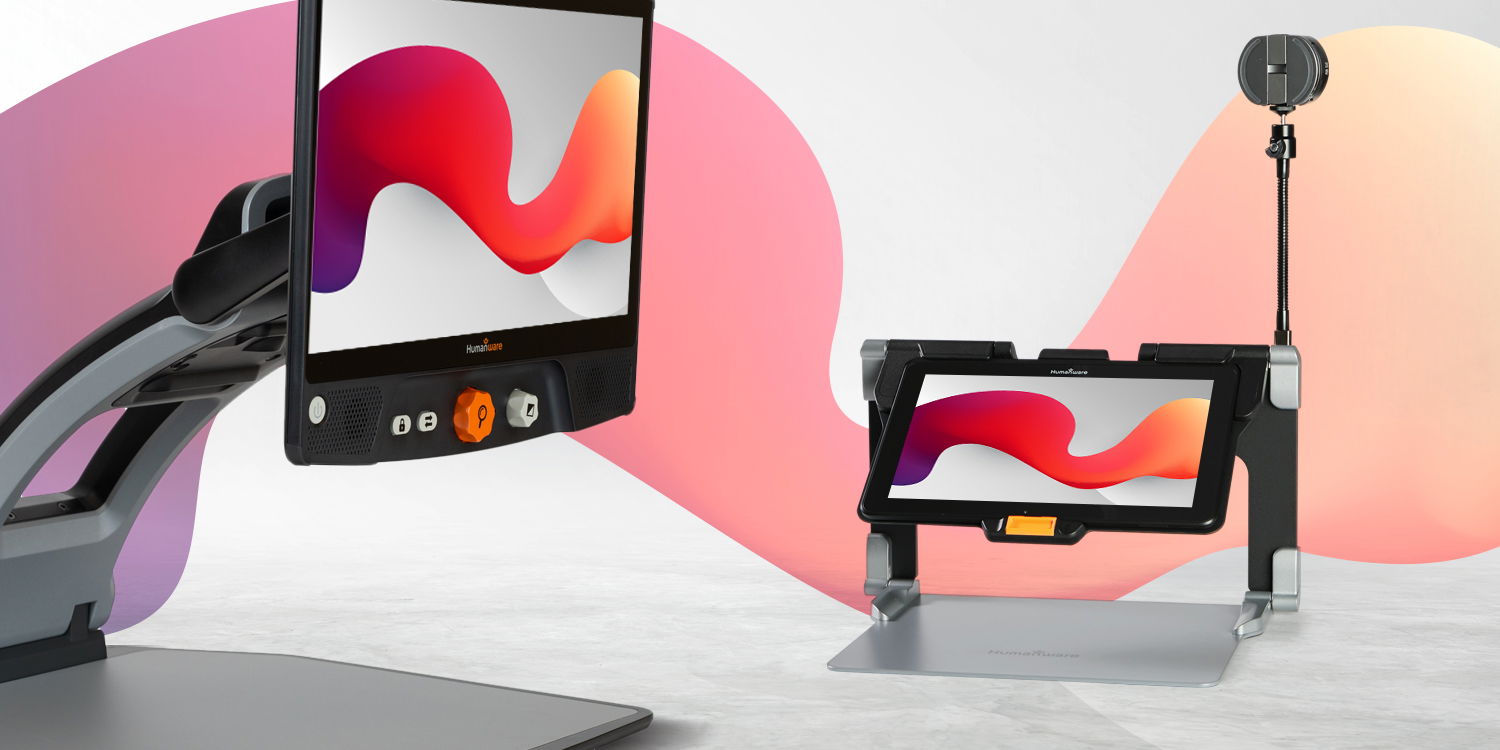
We are happy to announce multiple new features have been added to the Prodigi software (version 4.5) for use with the Connect 12 and Reveal 16i.
OCR (optical character recognition) language selection
You can now select the language to perform your OCR for enhanced results. How do I update my default OCR language?
- Go to Magnifier Application.
- Select the Settings icon from the Button Banner.
- Scroll and tap on OCR Languages option.
- Scroll to Choose OCR Language option.
- Select a language.
Select up to 4 system voices:
The number of system voices you may use has increased from 2 to 4. How do I download and install system voices?
- Go to the Prodigi Settings application.
- Scroll and tap on User Interface.
- Scroll and tap on System Language.
- Tap on Configuration.
- Select up to 4 voices.
New graphing calculator with graph capturing:
Graphing of math functions is now available while using Prodigi’s Calculator. Graphs can be captured and stored as a document in the Gallery using the following steps:
- Go to the Calculator application.
- Tap on the Settings icon at the top left corner of the screen.
- Tap on Mode.
- Select Graphing.
- Go back to the Calculator.
- Create a graph with the Calculator.
- Tap the Capture button on the Button Banner. The capture will be stored automatically in the Gallery under the Screenshot category.
Watch our new Graphing Calculator video.
Append a function graph to a document:
Graphs created with the Calculator can also be appended to existing documents. How do I use the new Append Graph function?
- Go to the Prodigi Gallery application.
- Create or open an existing document.
- Tap on the Settings icon at the top right corner of the screen.
- Tap on the Append option.
- Tap on New Function Graph.
- Create the graph and tap on the save icon in the Button Banner this will append the graph to the end of the document.
Watch a video to learn how to insert and append graphs to documents.
Save screenshots to the gallery application:
Screenshots can now be taken on Connect 12 or Reveal 16i using these methods: button shortcut (volume down + power) or virtual button on the Android banner. The screenshot will be saved automatically to the Screenshot category in the Gallery.
View our video on how to take screen shots.
New blue light filter
There are now 4 levels of Blue Light Filters in Prodigi. When activated the filter is available in both Prodigi and Android interfaces to limit eye strain. To use the new filters:
- Go to the Prodigi Settings application.
- Tap on the User Interface option.
- Scroll and tap on Blue Light Filter.
- Choose between Low, Medium, High, and Max level.
New exam mode
A tablet can now be locked down for a limited time during exam sessions with PIN protection. To use Exam Mode:
- Go to the Prodigi Settings application.
- Tap on Exam Mode.
- Tap again on Exam Mode to turn on.
- Select the start time, duration, and any applications to disable.
- Tap the Back button.
- Create a PIN to access, modify, or turn off Exam Mode.
View a recording to learn more about Exam Mode.
User profiles
Creating profiles for your students or users makes it easier to share devices when necessary. There is no need to factory reset the device any longer. Here is how to create User Profiles:
- Go to Android Settings.
- Tap on Users.
- Tap Add User or Profile.
- Tap on User in the Add popup window.
- Follow the on-screen instructions.
Code Jumper support
Users now can connect Code Jumper devices using the Prodigi interface. To make the connection:
- Turn on Code Jumper.
- In Prodigi go to the Settings application.
- Scroll and select System.
- Scroll and select Bluetooth Setup.
- Turn on Bluetooth if not already on.
- Scroll and select Devices.
- Tap Connect.
- Your Code Jumper is now paired with your device and ready for use.
If you have any questions or comments, please feel free to contact your HumanWare technical service department.
|