If you ever truly loved a MacBook, you’ve gotten your heart broken by one, too.
Apple’s longstanding MacBook line has a dream-like appeal; its stellar design sensibility suggests nearly limitless possibilities.
Apple’s willingness to buck trends also results in some stubborn decisions. Notably, it has stripped audio jacks from iPhones, insisted on a proprietary lightning cable, and typically charges a premium for memory and hard drive space.
When an additional 512 GB can cost $600—like the 16-inch M3 MacBook Pro—you may opt to make do with less.
How do you free up disc space on your Mac? Read on to learn how to check storage on your Mac to avoid stuffing your hard drive to the brim. Use Parallels Toolbox for Mac and Windows to greatly simplify hard drive management—there are a ton of extra handy tools included too!
How to check storage on your Mac
There are a few ways to check the storage on your Mac’s hard drive. The steps differ depending on your MacOS version.
Which MacOS are you running? You can check by hovering over the top menu bar, clicking the Apple icon on the far left, and then clicking About This Mac.
Instructions will differ if you have Ventura or later updates, including Sonoma or Sequoia, or if you have Monterey and earlier releases.
How to check the storage on your Mac using About My Mac
Our first method begins with the same steps as above. Navigate to About My Mac once more.
For Monterey and earlier: You’ll see a rectangular-shaped window with several tab options. Click Storage, and the following window will present a bar chart breaking down used and available space, sorted by file types (Like media, documents, and applications).
For Ventura and later: These users will see a smaller About My Mac window with a single button: More Info… Once clicked, you’ll arrive at the About tab in system settings. Scroll to the bottom and click Storage Settings.

Here, you’ll spot a bar chart illustrating your current storage usage, with different file types color-coded. Red represents documents, orange denotes applications, gray describes system data, and black is for free space.
How to check storage on your Mac through system settings
Accessing System Settings is simple. Click the Apple icon in the top menu bar and hit System Settings.
Scroll down the left-hand menu bar and click Storage. You’ll then arrive at the same Storage Settings window.
How to free up disk space on your Mac
Next, I’ll use the Storage Settings window to free up much-needed hard drive space.
Below the bar chart, you’ll see a table of file types and the volume of space they occupy. Clicking the encircled i for "information" next to each will launch a pop-up detailing that category’s largest files in descending order.
Typically, most of your space will be dedicated to apps or documents.
Let’s look at my MacBook Pro’s hard drive.
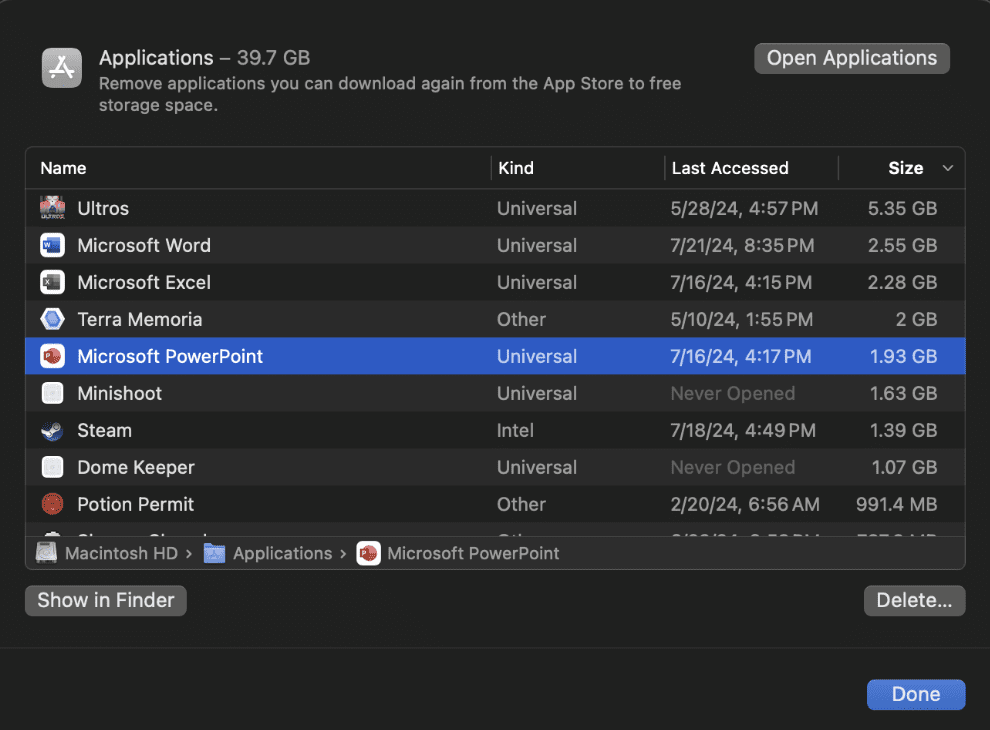
It looks like my Applications folder is stuffed. The largest apps are either video games or office tools. To save some space, I’d probably delete the games Ultros and Terra Memoria—I already beat them anyway.
I’ll also ditch Microsoft PowerPoint; I rarely use it, and Google Slides is free and good enough for my purposes.
Now, I’ll navigate to my document storage tab since it’s the largest file type by far.
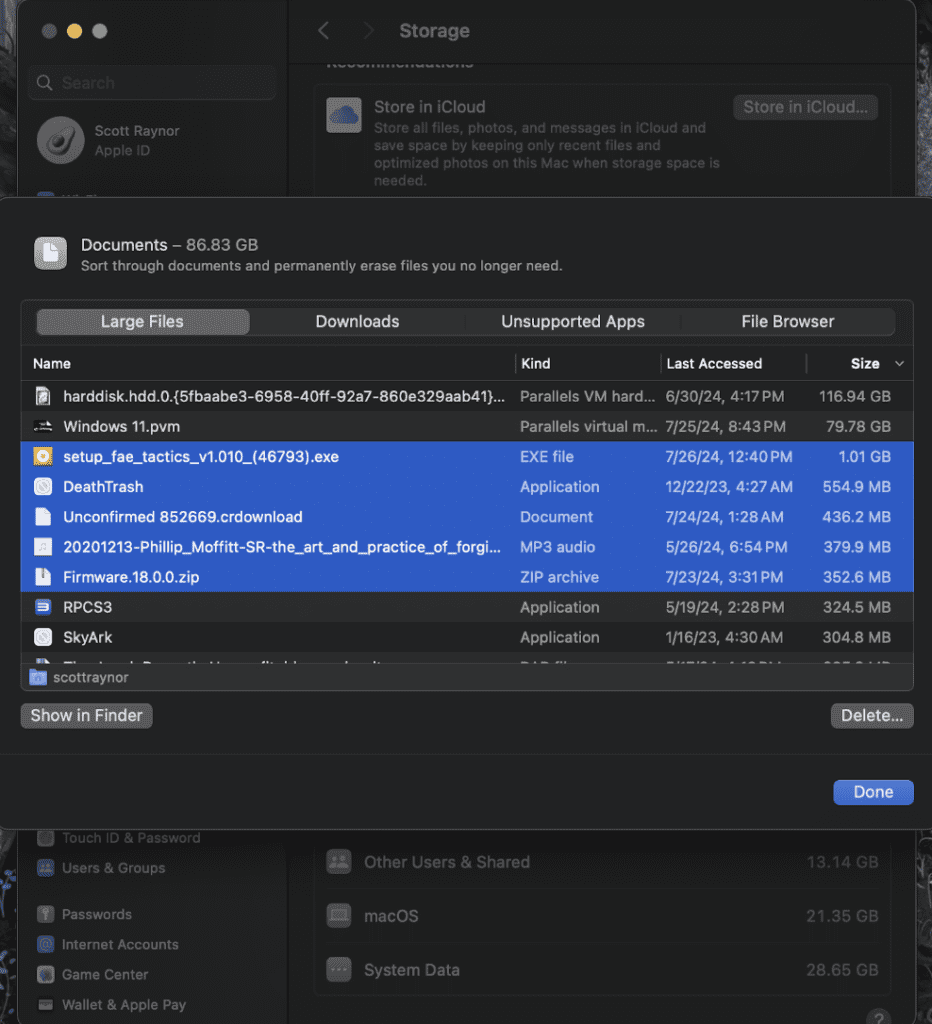
At the top, you’ll see Parallels Desktop, which I use to virtualize Windows 11, play Windows games, and use Windows applications.
I’ll keep that, and instead I’ll delete a bunch of somewhat smaller files, such as application setup files, corrupted downloads, and already-extracted compressed files.
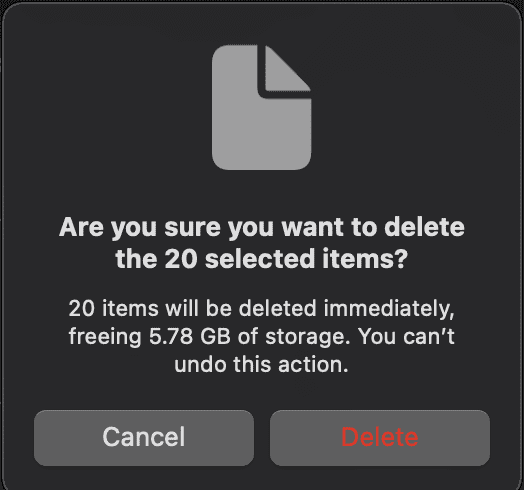
And look! I saved another 5 gigabytes.
Free up space on your Mac using Mac System Settings and Disc Utilities
Apple has developed a range of simple tools to help you manage hard drive space.
- Optimize Command
- Erase Junk Mail
- Reduce Clutter
Here’s how to use them to your advantage.
Empty your Mac’s trash on a regular basis
It's easy to forget your trash bin. It's hidden away and easy to overlook, and it can quickly hoover up space.
Use Optimize Command to set your trash bin to empty every 30 days (or a time frame of your choosing). This setting automatically deletes trash bin files after 30 days. I highly recommend using it. That said, if you frequently find yourself dumpster diving for needlessly discarded files, leave it off.
Erase junk mail using Mac System Settings
The average inbox is positively stuffed with messages—one study found respondents held an average of 8,024 emails, with 20 percent holding 21,000 plus.
If you’re not looking to hoard a massive volume of junk mail, you can save considerable space.
Open Mail, then right-click the mailbox containing the most messages (whether it’s your Inbox, drafts, or Sent folder).
Select Erase Deleted Items, then Erase Junk Mail. Voila!
Reduce clutter with Mac system settings
Monterey or earlier: Those still on macOS Monterey or earlier can use Reduce Clutter, a tool that helps you sort through files to determine what can be deleted. It’s halfway down the Recommendations window.
After clicking Reduce Clutter, start by selecting Review Files.
You’ll see five tabs: Large Files, Downloads, Unsupported Apps, Containers, and File Browser, which may help you decide what to delete.
Once you select a tab, you’ll see a list of the largest associated files in descending order. If you spot an expendable file, right-click and select Show in Finder. MacOS will open the folder containing the file. Select Delete to remove it.
Managing Your Mac’s Hard Drive Using Parallels Toolbox for Mac and Windows
Parallels Desktop, our virtual machine solution, enables you to run Windows apps on Mac (and so much more). It also provides handy MacOS tools in Parallels Toolbox (included in your subscription).
For instance, Clean Drive scans your hard drive for a wider array of file types and locations, including cache files, mobile app data, and iTunes temp files.
First, download and install Parallels Toolbox. Open the Toolbox, click the Library tab at the top, and scroll down until you see Clean Drive. Once clicked, the tool will scan your drive for nine types of overlooked files and recommend deletions.
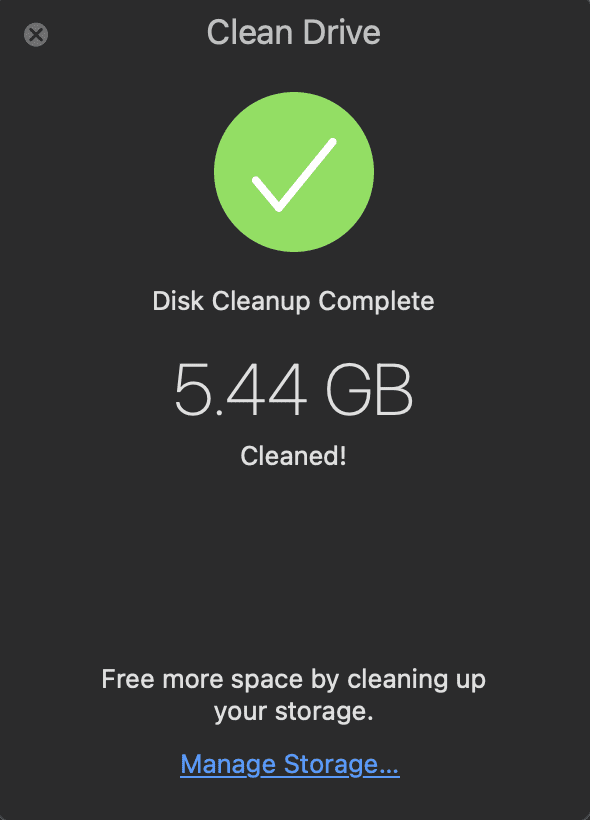
Despite just running Apple’s tools previously, I found a whopping 5.51 GB free. Time to download more games I’ll later forget to delete.
Even the confirmation window looks slick. https://www.parallels.com/products/toolbox/
Save yourself energy (and stress) and get your Mac’s storage under control
Whether you opt for more or less storage, you’ll be glad you learned how to check your Mac's storage and how to free up disk space.
Now go forth and continue to download mountains of .dmg files, videos, and large PDFs—that is until you need to make space for more.
Parallels Toolbox includes a plethora of extra applications designed to make Mac management easier. With your Parallels Desktop for Mac subscription, you can access over 50+ tools!